


Tenada: Graphic Design & Logo
4.6355.00 Reviews
App Specs
- Version
- 6.4.5
- Updated On
- License
- Free
- Downloads
- 1,000,000+
- Developer
- TENADA Corp.
- Categories
- Art & Design
- Platform
- Android
Screenshots
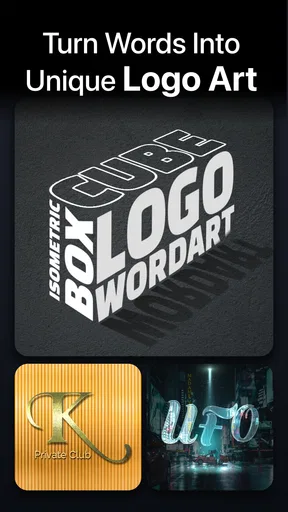
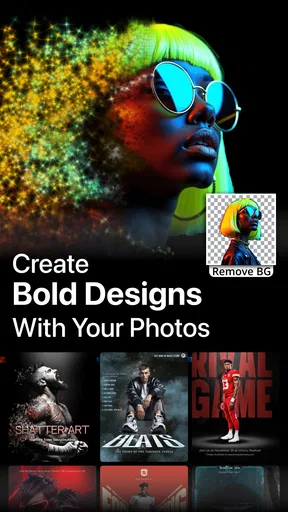
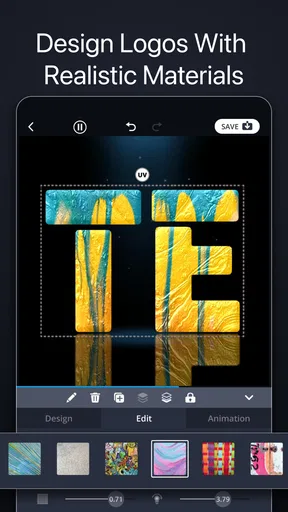
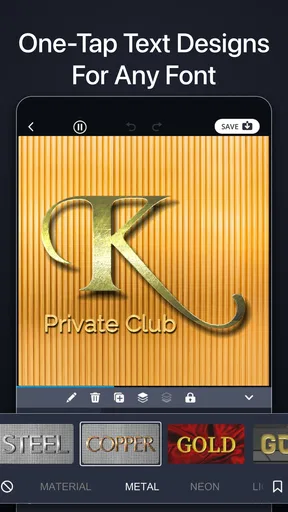
 Analysis by AppCompare
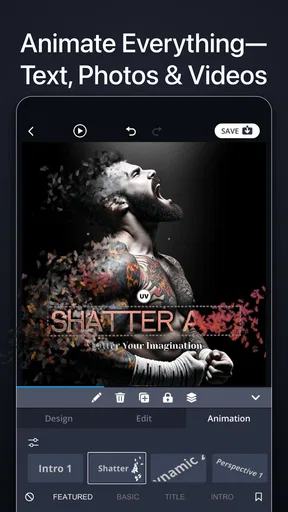
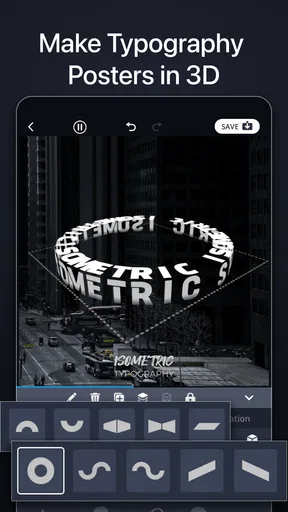
I find Tenada most useful when a design needs to look lively and polished but I don’t want to open a desktop editor. It’s an art and design app from TENADA Corp. built around making visual pieces on a phone, including animated logos and dimensional text. That focus makes it appealing for quick creative work, though it doesn’t automatically make it a replacement for a full design suite.
Where it fits in a mobile design workflow
On a phone, the hardest part of designing is often not choosing a color; it’s keeping text, spacing, and visual effects readable on a small screen. Tenada’s appeal is that it brings several kinds of graphic work into one place, so I can move from a logo-like mark to a poster or short intro without switching between unrelated tools. I’d treat it as a practical creation space rather than a complete professional production pipeline.
That distinction matters if you’re choosing between Tenada and a general-purpose drawing app. Drawing tools are better when the work depends on hand illustration or precise brush control. A template-led editor is usually faster for promotional graphics, while desktop software remains more comfortable for detailed layer management and exacting brand systems. Tenada sits nearer the quick, visual end of that spectrum: useful when momentum and presentation matter more than deep control.
A small-business task it handles well
Imagine you run a weekend craft stall and need a square post announcing a new product, plus a simple animated mark for a short social clip. You could sketch the message first, choose a visual direction, then adjust the wording and colors until the design feels like your stall rather than a generic announcement. The useful habit is to decide on the headline and the one thing people should notice before browsing effects; otherwise, it’s easy to spend time decorating a layout that still communicates poorly.
I’d also make a plain version before adding movement or dimensional styling. That gives you a clear fallback for places where animation is unnecessary and makes it easier to judge whether the core composition works. For repeated announcements, keeping the same color choices and type treatment can make separate pieces feel connected, even if each one is created quickly on a phone.
Who will get the most from it
Tenada is a natural fit for a beginner who wants to make a logo concept, a poster, or an intro without learning a complicated desktop program first. It can also suit a small business owner, club organizer, or social creator who needs occasional visual assets and prefers to work in short sessions. The central benefit is convenience: the app brings graphic design tasks into a format that’s easy to pick up when an idea arrives.
I’d be more cautious if your work depends on exact print specifications, intricate vector editing, or a carefully controlled brand library. Those jobs reward tools that expose more technical settings and make repeatable production easier. Likewise, if you mainly want to draw from scratch, a dedicated illustration app is likely a better match than an editor organized around finished graphic compositions.
Worth Reading Before You Choose

EA SPORTS FC Mobile 26 Is a Bigger Football Game, but It Takes Time

Flipboard Shows What News Apps Must Do Beyond the Feed

Switching to Android Auto Means Rethinking Your Driving Routine

Google Calendar Makes a Crowded Week Easier to Manage

Ludo King Makes the Most of the Minutes Between Plans

Baby Panda World Brings Quick Play to Modern Phones, but Its Game Library Feels Busy
First Impressions
From the get-go, Tenada: Graphic Design & Logo is all about sleekness and functionality. The user interface is intuitive, making it super easy to dive right into designing without any steep learning curve. I mean, who has time for that these days, right?
Upon opening the app, you're greeted with a vibrant dashboard that screams creativity. It's like stepping into a candy store for designers. The layout is clean and the tools are easily accessible, which is a big win in my book.
Features That Stand Out
One of the standout features of Tenada is the vast array of templates. Whether you're looking to create a logo, a social media post, or even a flyer, Tenada has got you covered. The templates are categorized neatly, making it easy to find what you need without endless scrolling.
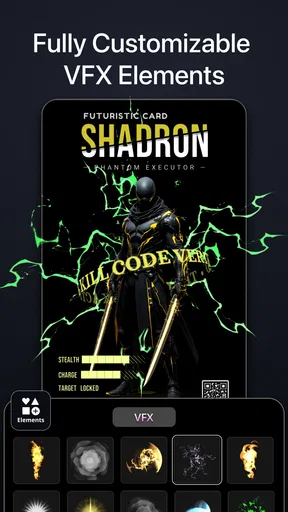
But what truly sets Tenada apart is its customization capabilities. You can tweak every element of the templates, from colors to fonts, to fit your unique style. It’s like having a design studio right in your pocket.
The app also includes a rich library of icons and graphics. So, if you’re like me and have no idea how to draw a perfect circle, Tenada’s got your back. Just drag and drop, and you’re good to go.
Making a design feel intentional
When I use a template, I try not to change every detail just because the controls are there. A more dependable approach is to pick one visual anchor—perhaps a headline, icon, or signature color—and let the other choices support it. This helps avoid the crowded look that can happen when a design collects too many fonts, colors, and decorative elements.
For a logo concept, I’d keep the wording short and inspect it at a small size before treating it as finished. A mark that looks impressive full-screen can become hard to read as a profile image. For a poster, I’d reverse the test: check that the main message is obvious at a glance, then make sure supporting details don’t compete with it. These simple checks are useful precisely because the quick editing flow can make it tempting to focus on appearance before legibility.
Performance and Usability
Now, let’s talk about the app’s performance. It runs smoothly even on my slightly older device, which is impressive. I didn’t encounter any lag or crashes, which is crucial when you’re in the middle of a creative burst.
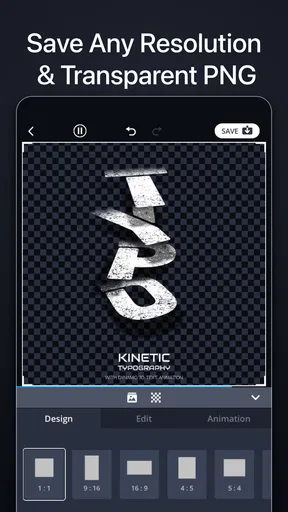
The app supports multiple export options, so you can save your designs in various formats like PNG, JPEG, and even PDF. This makes it super convenient to share your work across different platforms.
"Designing on-the-go has never been this easy."
Export choices and practical checks
Before sharing a finished graphic, I’d look at it outside the editor as well as inside it. A design can feel balanced while surrounded by editing controls, then appear too small or too busy when viewed in a message or feed. Checking the exported file at the size people will actually see is a simple way to catch that problem early.
It’s also worth thinking about the destination before choosing a format. A still image is straightforward for a poster or announcement, while an animated treatment is more appropriate when movement is part of the point. I wouldn’t assume one export suits every use: keep the intended platform and the way the asset will be viewed in mind, and make a separate version if the same design needs to work in different contexts.
Room for Improvement?
No app is perfect, right? While Tenada offers a ton of features, there are still a few areas for improvement. For instance, I’d love to see more advanced editing tools for those who want to dive deeper into design intricacies. And while the app provides a wide range of fonts, more variety would be a nice touch.
I also noticed that the free version has some limitations. To unlock all features, you’ll need to go for the premium subscription. It’s a common trend among design apps, but it’s something to keep in mind.
Cost, access, and version context
The app is free to install, with in-app purchases priced from $4.99 to $29.99 per item, so I’d explore the free experience before deciding whether a paid option is worthwhile for your routine. If you only make an occasional poster or experiment with a logo idea, paying may not be necessary. If you rely on it regularly, first work out which specific restriction is slowing you down rather than upgrading simply because a paid tier exists.
Tenada first appeared on December 20, 2020, and its current version is 5.5.0. That gives existing users a concrete way to identify the release they’re using, but a version number alone doesn’t tell me which changes matter most to a particular workflow. If you’ve used it for a while, it’s sensible to revisit your usual steps after updating and check whether the controls or results you rely on still suit your needs, rather than assuming every release changes the way you design.
What to check before committing to a project
For casual graphics, I’m comfortable beginning in Tenada and judging the result on its own merits. For a client deliverable or a design that must follow strict specifications, I’d settle the requirements first: the exact dimensions, the needed output, and whether the artwork must remain editable in another tool. If the job calls for precise production handoff, I’d choose software built around that requirement instead of discovering late that a convenient mobile workflow is not enough.
That’s also the answer to a common practical question: can it replace every other creative app? I wouldn’t use it that way. It makes more sense as a fast option for graphic compositions and visual experiments, alongside a drawing app for original illustration or a desktop editor for detailed finishing. Keeping those roles distinct helps avoid frustration and lets Tenada do what it’s best at.
Final Thoughts
In the end, Tenada: Graphic Design & Logo is a fantastic tool for anyone looking to get creative on-the-go. It combines ease of use with powerful features, making it suitable for both beginners and more experienced designers.
If you’re on the hunt for a versatile design app that won’t bog you down with complexity, Tenada is definitely worth checking out. It’s like having a mini design studio in your pocket, ready to unleash your creativity whenever inspiration strikes.
So, what are you waiting for? Go ahead and give Tenada a try. You might just find yourself falling in love with design all over again.
How I’d decide whether to keep using it
Its audience numbers suggest it has found a substantial community: Tenada has an average rating of 4.6 from around 27,000 ratings, more than 1 million installs, and about 333 written reviews. Those figures can be reassuring when you’re deciding whether an app is established, but they don’t tell you whether its style or workflow suits your own projects. I’d use the free app to test a real task you already have, not just make a throwaway design and assume the fit will be the same for more demanding work.
It’s rated for everyone, which makes it approachable for a broad audience, including people who are new to visual editing. My recommendation is simple: try it if you want an accessible way to build polished graphic pieces and are happy to make design decisions on a phone. Skip it as your main tool if you need fine-grained production controls or spend most of your creative time drawing. For the right kind of quick project, Tenada makes starting easier; the final quality still comes from choosing a clear message and knowing when to stop adding effects.
Pros
- User-friendly interface
- perfect for beginners.
- Wide variety of templates for quick designs.
- High-quality export options for all formats.
- Real-time collaboration with team members.
- Frequent updates with new design elements.
Cons
- Limited free version features available.
- Occasional lag on older devices.
- Requires internet for most functionalities.
- Some advanced tools require premium access.
- Ads can be intrusive in the free version.
FAQs for Tenada: Graphic Design & Logo
What features does Tenada: Graphic Design & Logo offer for beginners?
Tenada provides an intuitive interface ideal for beginners, featuring drag-and-drop tools and pre-designed templates for logos, social media posts, and more. It includes a wide array of fonts, colors, and graphic elements, making it easy for users with no prior design experience to create professional-looking graphics.
Is Tenada suitable for professional graphic designers?
While Tenada is user-friendly for beginners, it also offers advanced features for professional designers, such as customizable templates, layer management, and vector editing. The app supports high-resolution exports, ensuring that designs meet professional standards for both print and digital use.
Does Tenada require an internet connection to function?
Tenada primarily operates offline, allowing users to design without needing a constant internet connection. However, some features, such as downloading new templates or accessing cloud storage, may require an internet connection. This makes it versatile for use on the go or in areas with limited connectivity.
Are there in-app purchases or subscription fees in Tenada?
Tenada is free to download with optional in-app purchases. Users can unlock additional features, premium templates, and exclusive design elements through these purchases. There's also a subscription model that provides access to all premium content, offering more flexibility depending on your design needs.
What are the system requirements for installing Tenada on Android and iOS devices?
Tenada is compatible with most modern Android and iOS devices. For Android, it requires version 5.0 or higher, and for iOS, it supports iOS 11.0 or later. Ensure your device has adequate storage space to accommodate the app and any additional content you may download.


